EA Sports F1 25 PS5
The game in this guide with the full set of controller steering settings, so you can tune one slider at a time.
- PS5, physical
- Deadzone + linearity
- Saturation
€32.99
Coolblue ↗
specs, all 4 shops ▸
On a controller, deadzone, linearity and saturation set how far the front wheels turn per stick push. Get them wrong and you saw at the wheel.
This guide explains what each setting does, why a small deadzone and little saturation usually beat the defaults, and how to tune one setting at a time on a single test corner. Drag a virtual stick to see why a big deadzone makes steering twitchy, and find what F1 25, Forza and Gran Turismo 7 call each setting.
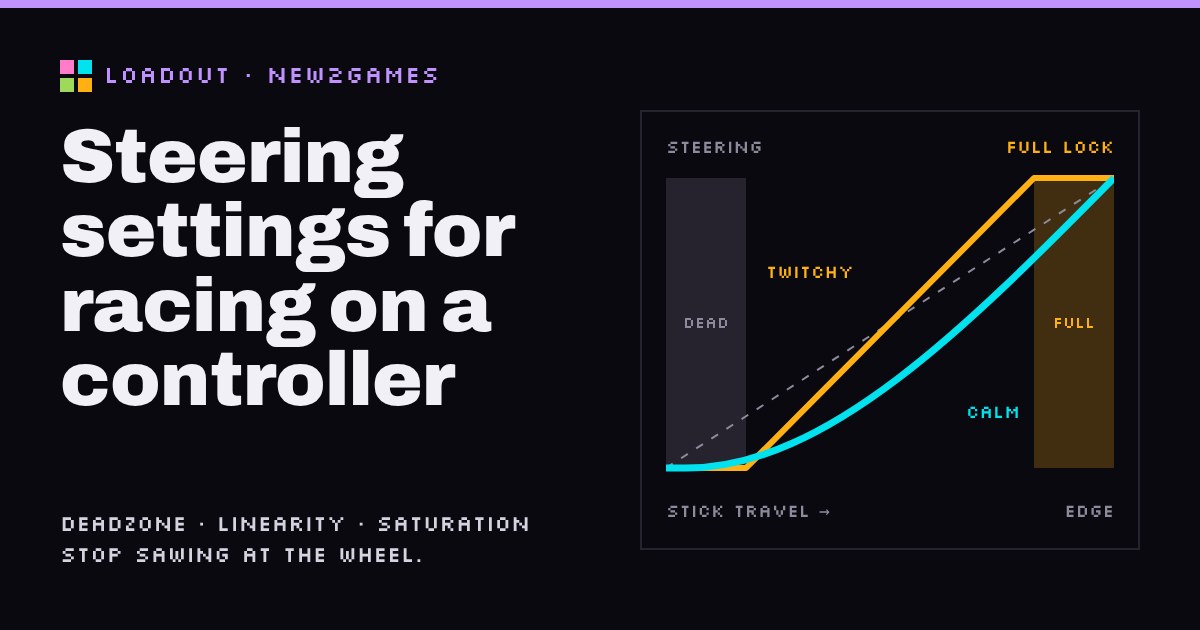
On a controller, three settings decide how far the front wheels turn when you push the stick: the deadzone (how much of the middle is ignored), linearity (how gently the steering builds up) and saturation (how early full lock arrives). If you keep sawing at the wheel, snaking left and right through corners, the usual cause is a short stretch of usable stick doing too much work. Start with the smallest deadzone your stick allows, add a little linearity, leave saturation near zero, and change one setting at a time on the same corner.
None of this makes you faster by itself. It makes the stick tell the car what your thumb meant.
A real steering wheel turns through a big arc, so a small mistake with your hands is a small mistake at the tyres. A thumbstick moves a short distance from centre to edge, and the game has to stretch that short movement across the car's whole steering range. Every bit of thumb movement carries a lot of steering.
Sawing is what happens when that gets out of hand. You turn in, the nose turns a bit too far, you correct, it swings too far the other way, and you correct again. Each swing scrubs speed. It feels like a driving problem, but often it is a mapping problem: the settings make a few millimetres of stick far more powerful than you expect.
In this site's terms, racing on a controller is mostly an Execution challenge: timing and precision with your hands. Good settings don't remove that challenge. They stop the controller from adding a second, unfair one on top.
| Setting | What it does | Too much feels like |
|---|---|---|
| Deadzone | Ignores a small circle around the stick's centre | Nothing, nothing, then a sudden bite |
| Linearity | Bends the curve so small pushes give less steering | Lazy turn-in, then a yank |
| Saturation | Gives full lock before the stick reaches its edge | Twitchy, with nothing left in reserve |
The deadzone exists because no stick rests at exactly zero; without one the car would wander on a straight. Linearity at 0 means straight-line mapping: half the stick, half the lock. Raising it softens the middle while still giving full lock at the edge. Saturation trims the far end, so you reach full lock before your thumb hits the rim.
The catch is that deadzone and saturation both eat the same short stick. Whatever is left between them is your usable travel, and the game squeezes the car's whole steering range into it. Shrink it, and every millimetre of thumb counts for more. Try it below.
Try the Twitchy preset: a big deadzone plus some saturation leaves barely half the stick to work with. Hold the stick at a gentle cornering position and the same small thumb wobble now swings the wheels nearly twice as far. Then try Calm: a small deadzone and some linearity make the middle of the stick gentle, which is where you spend most of a corner, while full lock is still there at the edge.
The names differ, and so do the menus. Here is what we could confirm:
Note the direction: in some games a higher number means calmer steering (linearity), in others it means sharper (sensitivity). Read the description in the menu before you move anything.
Changing three sliders at once and driving a lap tells you nothing. Change one thing, test it the same way, keep a note.
One habit to watch, rather than a skill to build: steering with constant little flicks. Even with good settings, a busy thumb keeps the front tyres changing direction. Aim to set one steady stick angle through the middle of the corner and hold it. If you can't, that is when to revisit linearity, not before. And if you're still struggling, steering assists such as Gran Turismo 7's Countersteering Assistance are there to be used while you learn.
See also: what a controller deadzone is and how to fix stick drift on new2gaming.
The smallest one where the car doesn't pull by itself when you let go of the stick; that differs from controller to controller.
It makes small stick pushes give less steering while keeping full lock at the edge, which calms mid-corner corrections.
Usually because a short stretch of usable stick controls a lot of steering, so every small correction is too big; reduce deadzone and saturation first.
Your next step: open your racing game's controller settings, write down the current values, then pick one corner and do step 2 of the routine tonight: deadzone only, nothing else.
The game in this guide with the full set of controller steering settings, so you can tune one slider at a time.
Fewer stick settings to get lost in, plus a countersteering assist that helps while you learn smooth inputs.
Uses inside and outside deadzones, the two settings this guide's curve tool lets you try first.